Keyboard Controls
The RetroArch interface was initially designed for gamepad use, but it can also be operated using a keyboard.
important
You will need all these keys. Remember them!
- Use the arrow keys
↑,↓,←,→to navigate through menu items.- To quickly scroll through long lists, use the left/right keys:
←,→.
- To quickly scroll through long lists, use the left/right keys:
- Press
Enterto open a menu item. - Press
Backspaceto go back. - Open the in-game menu with the
F1key. - Exit the program with the
Esckey. - Toggle fullscreen mode with the
Fkey. - Save the game state with
F2and load a saved state withF4(see Save and Load).
You can customize these hotkeys in the Settings / Input / Hotkeys section.
Game Focus
Even if you don’t plan to customize hotkeys, you should definitely check which key is assigned to activate Game Focus mode and change it if needed.
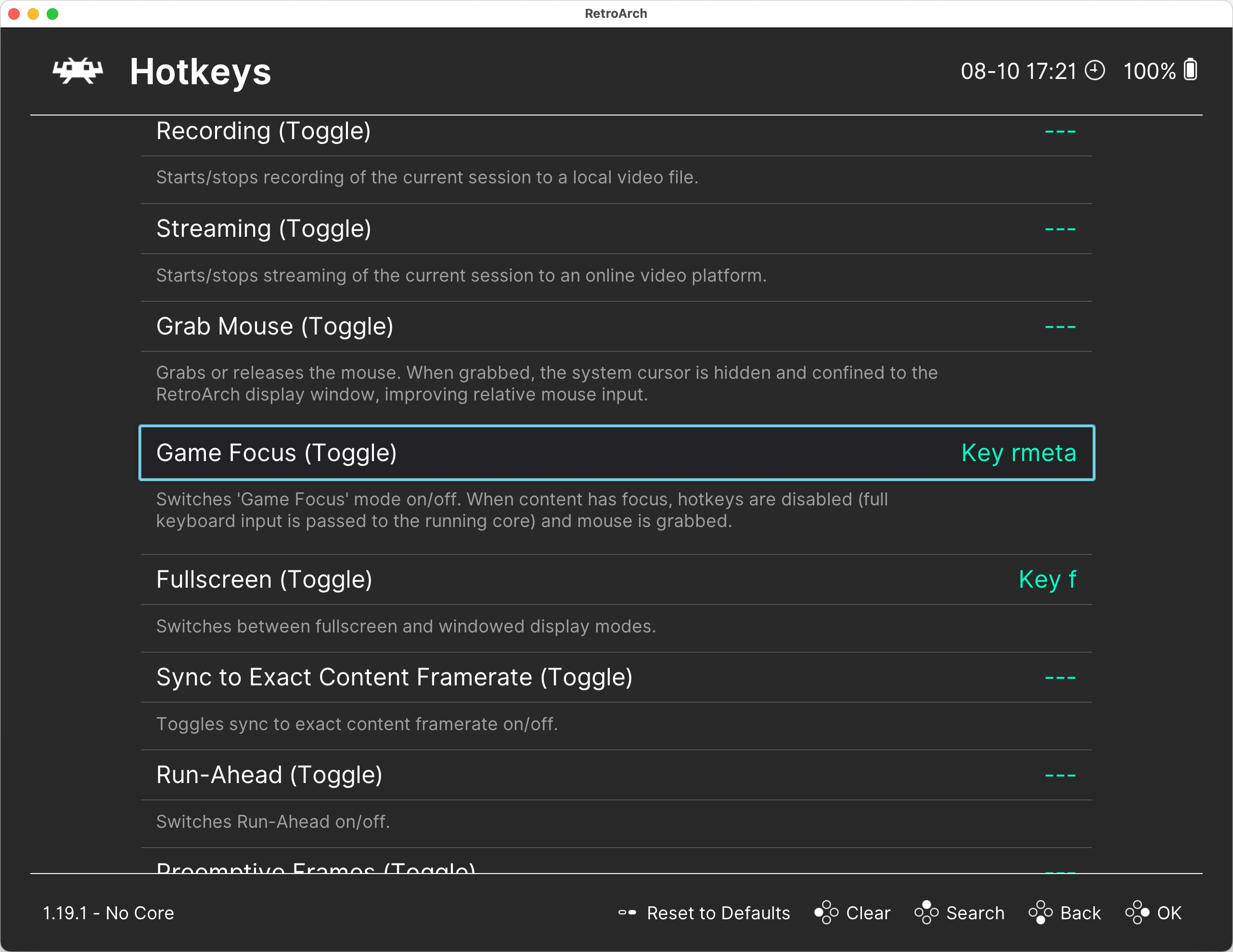
When Game Focus mode is active, all key presses are passed directly to the emulator, not to RetroArch. This is essential for the proper functioning of many DOS games and applications that use keyboard input.
It's important to know how to activate and deactivate Game Focus mode.
You can configure RetroArch to automatically enable Game Focus mode for specific emulators that require it. To do this, go to Settings / Input and set Auto-Enable Game Focus to Detect.
important
In Game Focus mode, you won’t be able to use RetroArch hotkeys, such as F1 for opening the menu.
To use these keys, you must first exit Game Focus mode.
The next step is to configure the system folders.